
101 lines
3.1 KiB
Markdown
Executable file
101 lines
3.1 KiB
Markdown
Executable file
# Using Let's Encrypt to setup HTTPS
|
|
|
|
##Prequisites
|
|
|
|
1. You need to have a DNS Multitenant Setup
|
|
2. Your site should be accessible via a valid domain
|
|
3. You need root permissions on your server
|
|
|
|
**Note : Let's Encrypt Certificates expire every three months**
|
|
|
|
## Using Bench Command
|
|
|
|
Just run:
|
|
|
|
sudo -H bench setup lets-encrypt [site-name]
|
|
|
|
You will be faced with several prompts, respond to them accordingly. This command will also add an entry to the crontab of the user that will attempt to renew the certificate every month.
|
|
|
|
### Custom Domains
|
|
|
|
You can setup Let's Encrypt for [custom domains](adding-custom-domains.html) as well. Just use the `--custom-domain` option
|
|
|
|
sudo -H bench setup lets-encrypt [site-name] --custom-domain [custom-domain]
|
|
|
|
### Renew Certificates
|
|
|
|
To renew certificates manually you can use:
|
|
|
|
sudo bench renew-lets-encrypt
|
|
|
|
<hr>
|
|
|
|
## Manual Method
|
|
### Download the appropriate Certbot-auto script into /opt
|
|
|
|
https://certbot.eff.org/
|
|
|
|
### Stop nginx service
|
|
|
|
$ sudo service nginx stop
|
|
|
|
### Run Certbot
|
|
|
|
$ ./opt/certbot-auto certonly --standalone
|
|
|
|
After letsencrypt initializes, you will be prompted for some information. This exact prompts may vary depending on if you've used Let's Encrypt before, but we'll step you through the first time.
|
|
|
|
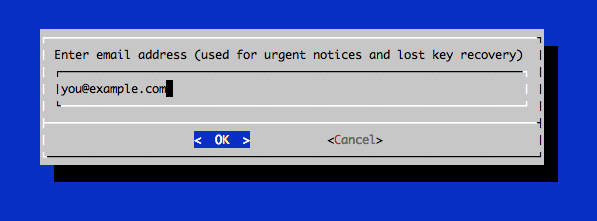
At the prompt, enter an email address that will be used for notices and lost key recovery:
|
|
|
|
|
|
|
|
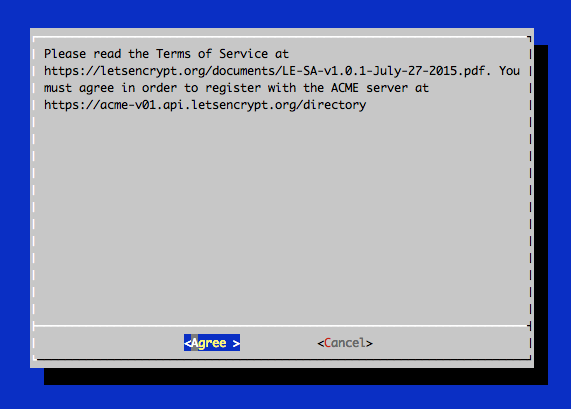
Then you must agree to the Let's Encrypt Subscribe Agreement. Select Agree:
|
|
|
|
|
|
|
|
Then enter your domain name(s). Note that if you want a single cert to work with multiple domain names (e.g. example.com and www.example.com), be sure to include all of them:
|
|
|
|

|
|
|
|
### Certificate Files
|
|
|
|
After obtaining the cert, you will have the following PEM-encoded files:
|
|
|
|
* **cert.pem**: Your domain's certificate
|
|
* **chain.pem**: The Let's Encrypt chain certificate
|
|
* **fullchain.pem**: cert.pem and chain.pem combined
|
|
* **privkey.pem**: Your certificate's private key
|
|
|
|
|
|
These certificates are stored under `/etc/letsencrypt/live/example.com` folder
|
|
|
|
### Configure the certificates for your site(s)
|
|
|
|
Go to your erpnext sites site_config.json
|
|
|
|
$ cd frappe-bench/sites/{{site_name}}
|
|
|
|
Add the following two lines to your site_config.json
|
|
|
|
"ssl_certificate": "/etc/letsencrypt/live/example.com/fullchain.pem",
|
|
"ssl_certificate_key": "/etc/letsencrypt/live/example.com/privkey.pem"
|
|
|
|
|
|
Regenerate the nginx configuration
|
|
|
|
$ bench setup nginx
|
|
|
|
Restart the nginx server
|
|
|
|
$ sudo service nginx restart
|
|
|
|
---
|
|
|
|
### Auto renewal (experimental)
|
|
|
|
Login as root or a user with superuser privileges, run `crontab -e` and enter:
|
|
|
|
|
|
# renew letsencrypt certificates on 1st monday of every month and get an email if it gets executed
|
|
MAILTO="mail@example.com"
|
|
0 0 1-7 * * [ "$(date '+\%a')" = "Mon" ] && sudo service nginx stop && /opt/certbot-auto renew && sudo service nginx start
|